
【Warudo /Unity】ペンライトパーティクル Penlight Blade
- ダウンロード商品Warudo / Unity版(個人ライセンス)¥ 800
- ダウンロード商品Warudo / Unity版(チームライセンス)¥ 2,500
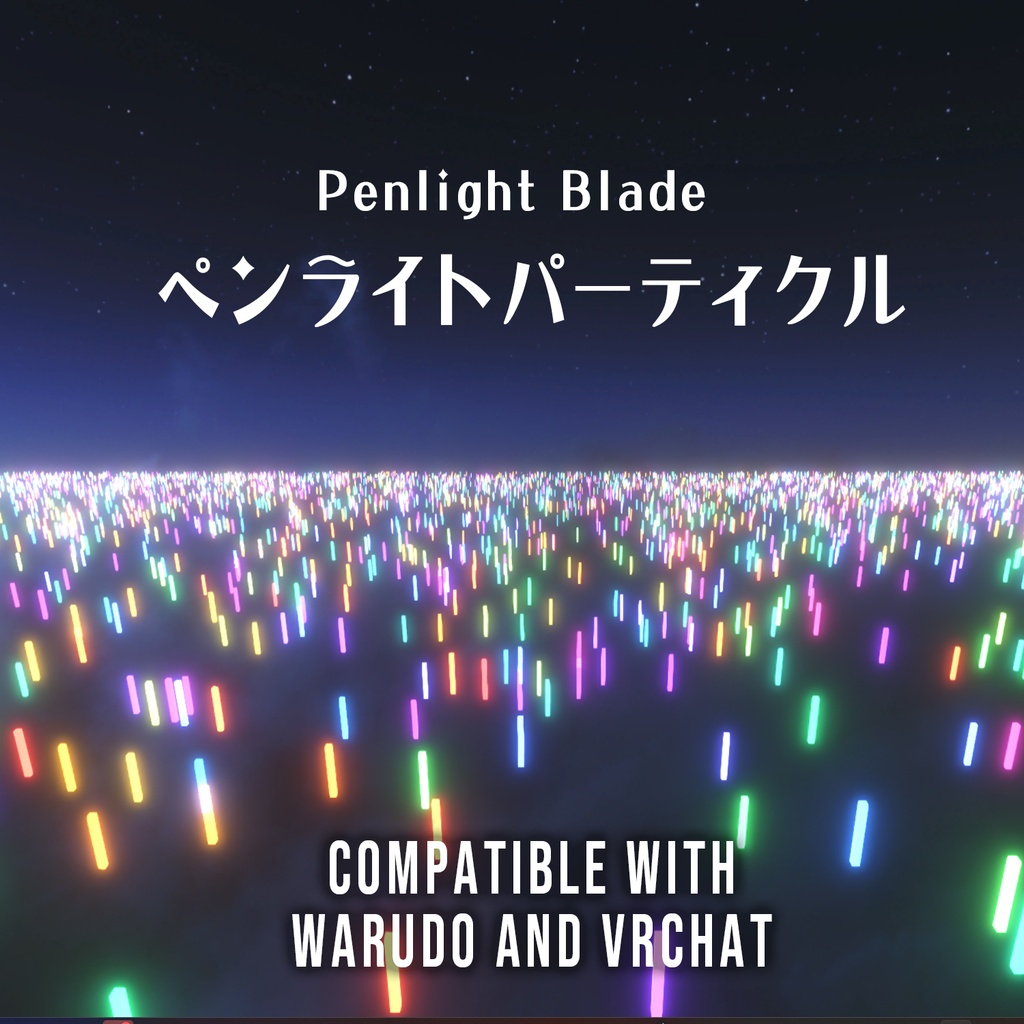
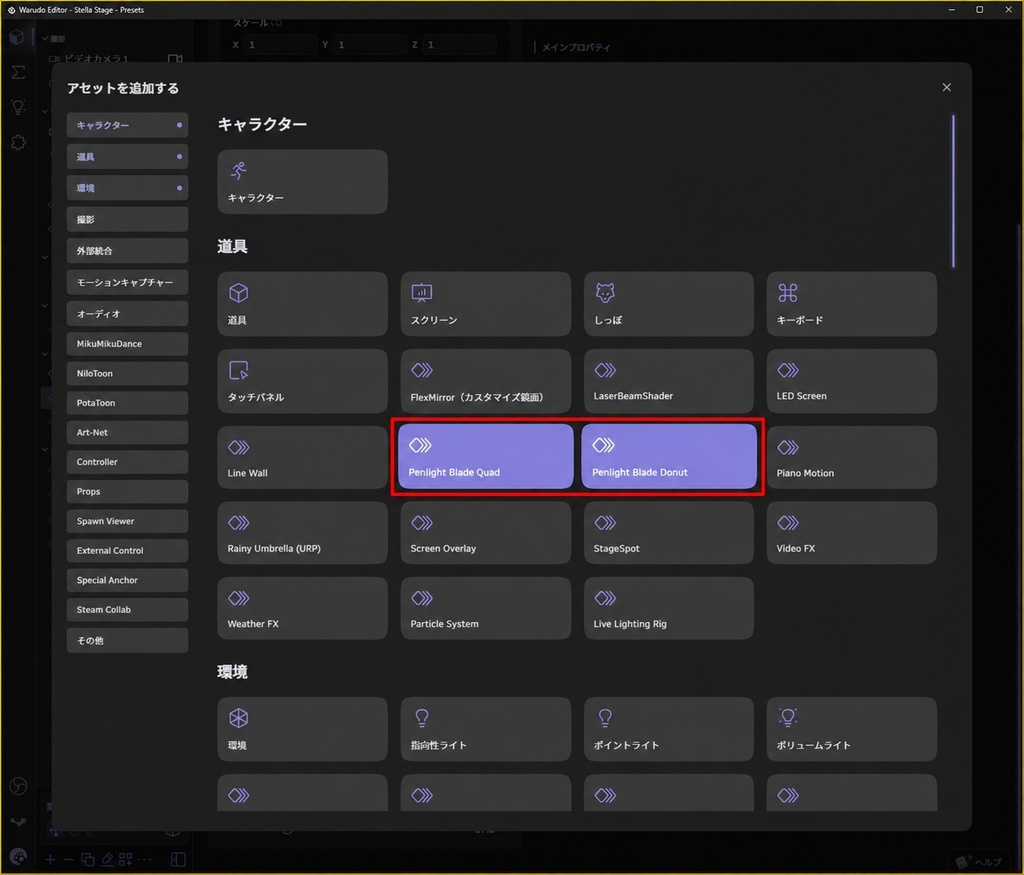
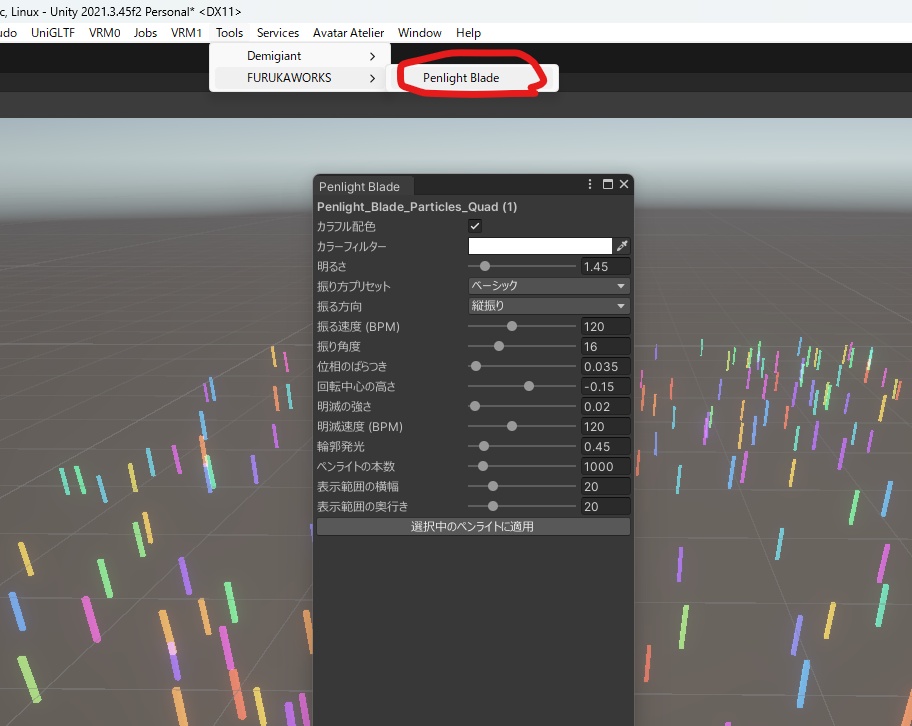
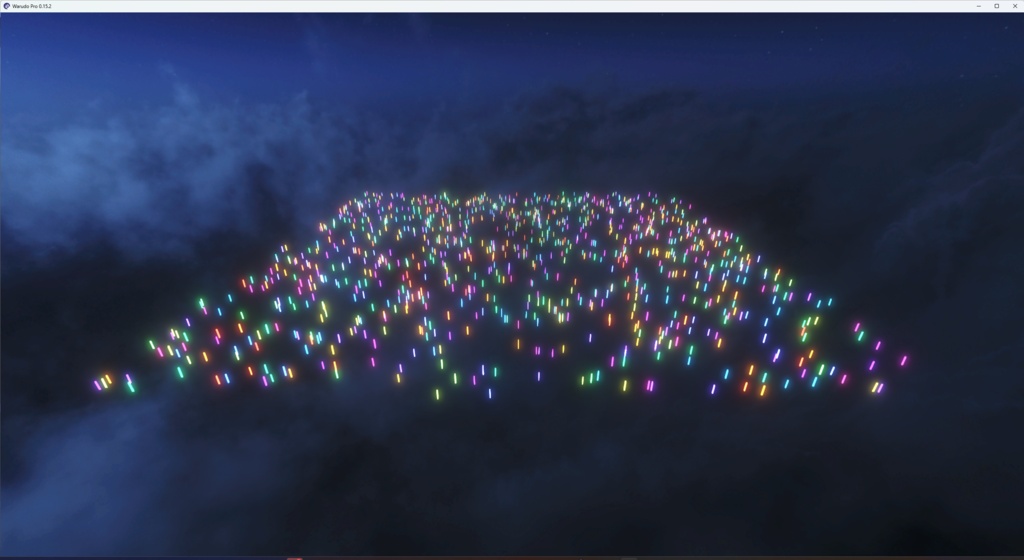
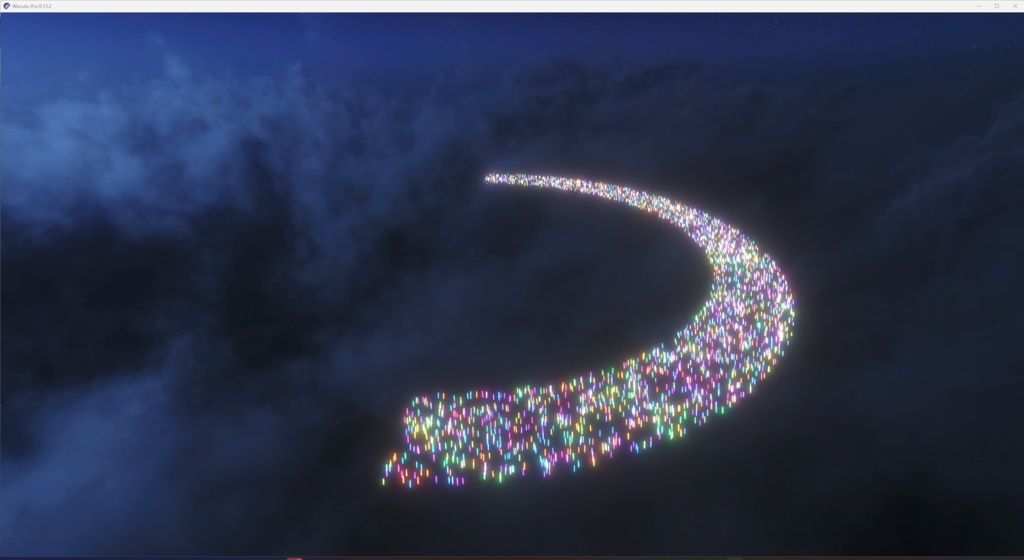
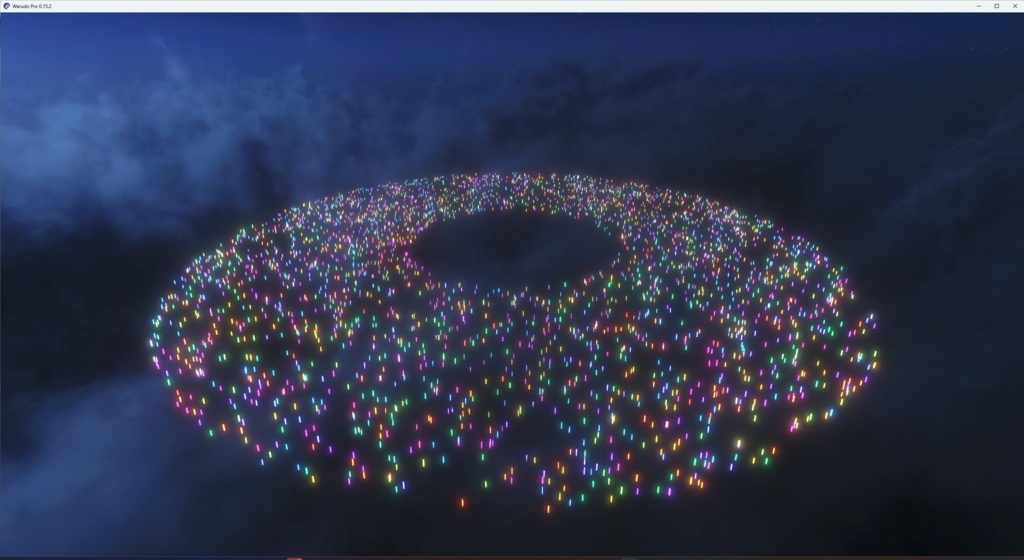
【不具合情報/Bug fix】 V1.0で一部環境で正常に読み込まれない不具合が見つかりました。 お手数ですがダウンロードページよりV1.1を再度ダウンロードしていただき元データと差し替えてお試しください。 A bug has been found in V1.0 that may prevent the plugin from loading correctly in some environments. Please download V1.1 from your download page and replace the original file with it. Warudo上で自由にサイズや色を変更できるペンライトパーティクルです。 Unity(VRChat)でも使えます。 四角に広げるQuadと、円形に広げるDonutを同梱しています。 A penlight particle asset for Warudo. You can freely change its size and color in Warudo. It also works in Unity (VRChat). Includes Quad, which spreads in a square shape, and Donut, which spreads in a circle. ■ 主な機能 / Key Features ・Quad/Donutの2種類。初期本数は各1,000本 ・カラフル配色と単色を切り替え ・本数、配置範囲、色、明るさを調整 ・振り方プリセット、縦振り/横振り、BPM、振り幅、明滅を調整 - Two types: Quad and Donut. 1,000 sticks each by default. - Switch between colorful and single-color palettes. - Adjust the number of sticks, spread range, color, and brightness. - Swing presets, vertical / horizontal swing, BPM, swing range, and blinking. ■ 同梱ファイル / Included Files ・Penlight Blade.warudo(Warudo版) ・Penlight Blade.unitypackage(Unity/VRChat共通版) - Penlight Blade.warudo (Warudo version) - Penlight Blade.unitypackage (Unity / VRChat version) ■ Warudo版の使い方 / How to Install (Warudo) 1. Warudoのメニューから「Open Data Folder」を開きます。 2. Penlight Blade.warudo を、データフォルダー内の StreamingAssets\Plugins フォルダーの直下に入れます。zipのまま置いたり、別のフォルダーの中に入れ子にしたりしないでください。 3. Warudoを再起動します。 4. エディターのアセット追加から「Penlight Blade Quad」または「Penlight Blade Donut」を追加します。 ※ Penlight BladeはWarudoのPlugin modです。Pluginsフォルダー以外(StreamingAssets直下など)に置いても読み込まれません。 1. In Warudo, open Menu → Open Data Folder. 2. Place Penlight Blade.warudo directly inside the StreamingAssets\Plugins folder in the data folder. Do not leave it as a zip file, and do not place it inside another folder. 3. Restart Warudo. 4. In the editor, add "Penlight Blade Quad" or "Penlight Blade Donut" from Add Asset. Note: Penlight Blade is a Warudo Plugin mod. It will not load if placed anywhere other than the Plugins folder (e.g., directly under StreamingAssets). ■ Unity/VRChat共通版の使い方 / How to Use (Unity / VRChat) 1. Penlight Blade.unitypackageをUnityプロジェクトにインポートします。 2. Assets/FURUKAWORKS/PenlightBlade/Prefabsから、QuadまたはDonutをシーンに配置します。 3. Hierarchyで配置したペンライトを選び、Tools > FURUKAWORKS > Penlight Bladeを開きます。 4. 設定を調整し、「選択中のペンライトに適用」を押してシーンを保存します。Donutを移動した場合は、再適用して振り動作の中心を更新してください。 5. VRChatで使う場合は、Worlds SDK入りのPCワールドプロジェクトで設定し、ワールドをビルドします。 1. Import Penlight Blade.unitypackage into your Unity project. 2. From Assets/FURUKAWORKS/PenlightBlade/Prefabs, place Quad or Donut into your scene. 3. Select the placed penlight in the Hierarchy, then open Tools > FURUKAWORKS > Penlight Blade. 4. Adjust the settings, press 「選択中のペンライトに適用」 ("Apply to Selected Penlight"), and save the scene. If you move the Donut, apply again to update the center of the swing motion. 5. For VRChat, set it up in a PC world project with the Worlds SDK installed, then build the world. 対応環境 / Supported Environments Unity Built-in Render Pipeline/URP Built-inはUnity 2022.3.22f1、URPはUnity 2021.3.45f2/URP 12.1.15 VRChatはWindowsのPCワールド向けです。 Quest/Androidおよびアバター用途は動作確認の対象外です。 動作確認した対応環境以外はサポートいたしかねます。 - Unity Built-in Render Pipeline / URP - Built-in: Unity 2022.3.22f1; URP: Unity 2021.3.45f2 / URP 12.1.15 - VRChat: Windows PC worlds only. - Quest / Android and avatar use are not covered by our testing. - We cannot provide support for environments other than those listed above. 発光の見え方は、シーンのBloom・露出・背景によって変わります。 How the glow appears depends on the scene's bloom, exposure, and background.
ライセンスについて / License
個人ライセンスは、特定の使用者1名が自身の活動や制作で使用するためのライセンスです。 個人・法人・団体への所属や、商用・非商用を問わず、以下の条件を満たす場合は個人ライセンスをご利用いただけます。 ・本アセットを使用・管理する方が1名に限定されていること ・本アセットを含むWarudoのシーンデータを他の方と共有・譲渡・納品しないこと VTuber事務所や企業に所属している場合でも、特定の使用者1名のみが使用する場合は個人ライセンスで問題ありません。 配信、動画制作、3Dライブ、商用イベントなどにもご利用いただけます。 The Personal License is for a single specific user to use in their own activities and creations. Regardless of whether you belong to an individual, company, or organization, and whether your use is commercial or non-commercial, you may use the Personal License if you meet the following conditions: - Only one person uses and manages this asset. - You do not share, transfer, or deliver Warudo scene data containing this asset to others. Even if you belong to a VTuber agency or company, the Personal License is fine as long as only one specific person uses it. You may use it for streaming, video production, 3D lives, commercial events, and more. 以下のいずれかに該当する場合は、チームライセンスをご購入ください。 ・クリエイターが依頼を受け、本アセットを含むWarudoのシーンデータを第三者に納品する場合 ・複数人の制作チームで、本アセットを含むシーンデータを共有して使用する場合 ・法人・企業・団体が、複数のスタッフや担当者で本アセットを共同利用する場合 上記に該当する場合、制作チームまたは案件の代表者1名がチームライセンスをご購入ください。 アセットの内容は個人ライセンスと同一ですが、チームライセンスではチーム内での共有や、第三者へのシーンデータの納品が可能になります。 納品されたシーンデータの受領者は、そのシーン内で本アセットを使用・改変できます。 Please purchase the Team License if any of the following apply: - A creator is commissioned and delivers Warudo scene data containing this asset to a third party. - A production team of multiple people shares and uses scene data containing this asset. - A company, business, or organization uses this asset jointly across multiple staff members or people in charge. In these cases, one representative of the production team or project should purchase the Team License. The asset content is identical to the Personal License, but the Team License allows sharing within the team and delivery of scene data to third parties. Recipients of delivered scene data may use and modify this asset within that scene. ライセンスは使用形態に応じて適用されます。企業や事務所への所属のみを理由にチームライセンスが必要になることはありません。 個人ライセンスで購入後、チームでの共有や第三者への納品が必要になった場合は、事前にお問い合わせください。 ライセンスの判断が難しい場合は、BOOTHのショップメッセージ、またはXのDMにてお気軽にお問い合わせください。 The applicable license depends on how the asset is used. Belonging to a company or agency alone does not require a Team License. If you purchased a Personal License and later need to share it within a team or deliver it to a third party, please contact us in advance. If you are unsure which license applies, feel free to contact us via BOOTH shop message or X DM.